01
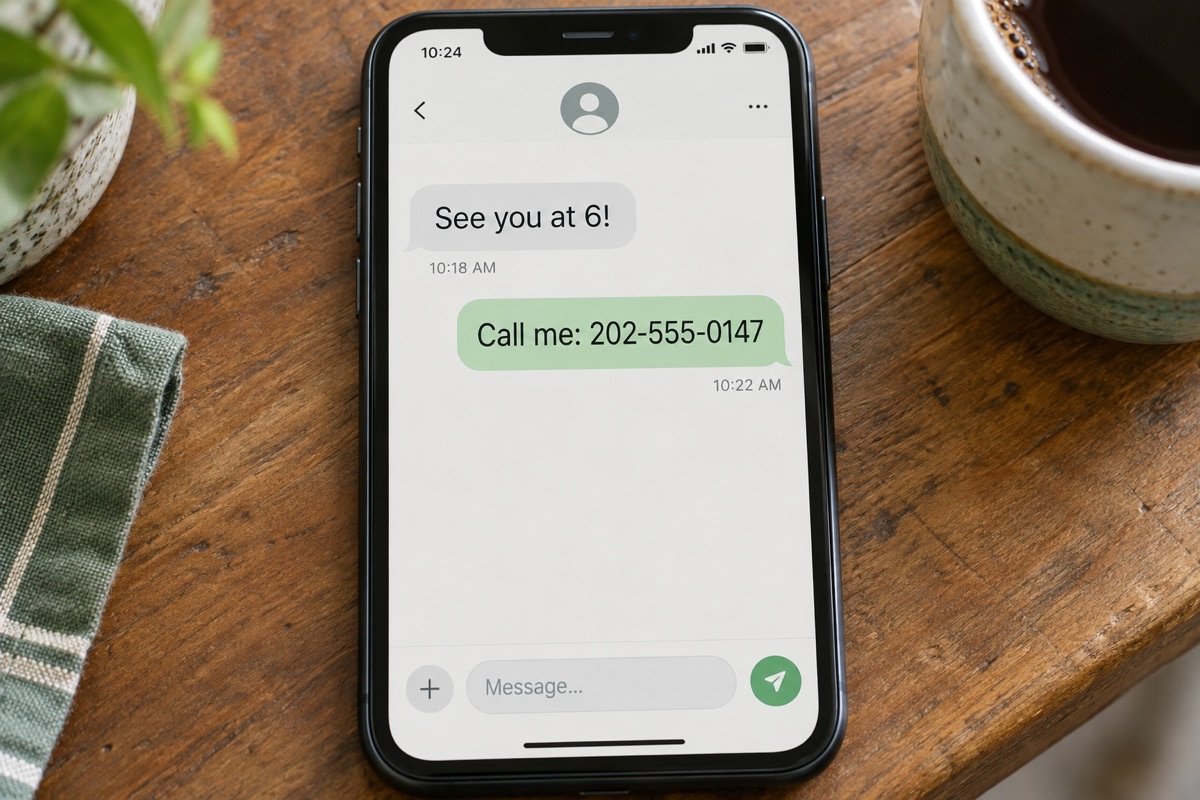
Share the chat, hide the phone number
Keep the conversation readable when you ask a friend for advice. Brush over the phone number before sharing the screenshot.
Blur text in your image ChangeTextImage
Need to blur text in an image? Drop the file in the editor, brush over the words you want hidden, and blur them — the rest of the picture stays exactly as it was. It works for hiding addresses, phone numbers, prices and names on screenshots, receipts, chat shots and product photos.
Brush over the text, then apply blur. Scroll outside the image to move down the page on your phone.
Keyboard: focus the image, move with arrow keys and press Space to brush. Hold Shift to move farther.
Select the text you want to blur.
Upload a screenshot, receipt or photo to the editor.
Brush over the words you want to hide, keeping the selection inside the area you want blurred.
Click Blur, check the result and download your image.
The whole job runs in your browser — there is nothing to install.
Keep the conversation readable when you ask a friend for advice. Brush over the phone number before sharing the screenshot.
Blur text in your image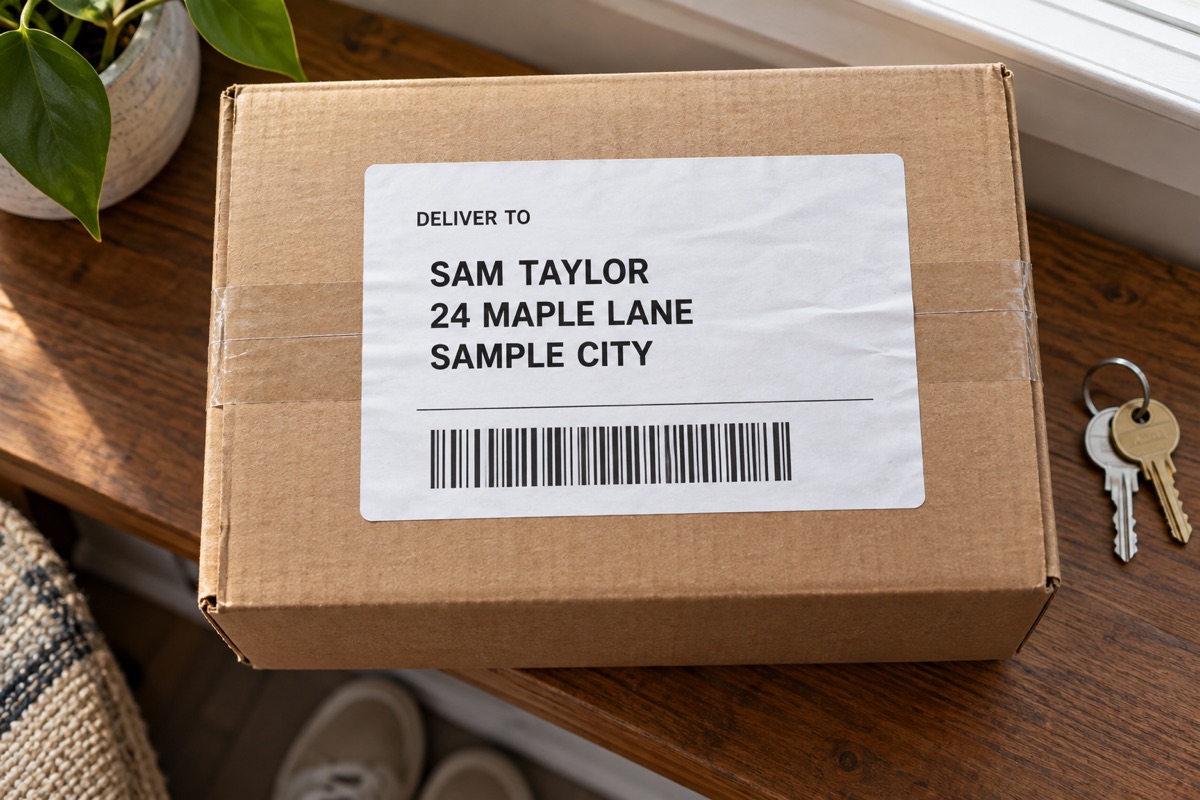
Posting an unboxing photo? Blur the street address on the parcel label while keeping the package in view. Check names and barcodes separately before sharing.
Blur text in your image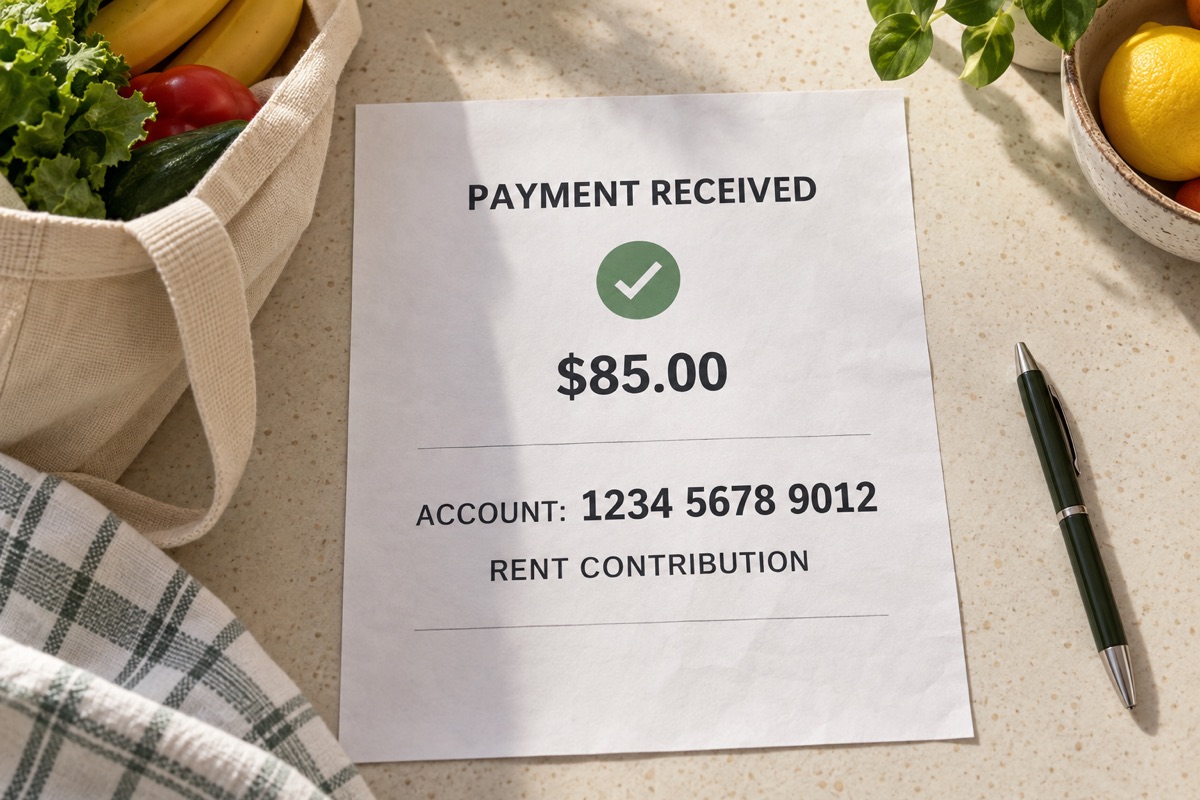
Let a roommate see the payment amount while you blur the account number. Review the rest of the receipt for other details you want to hide.
Blur text in your image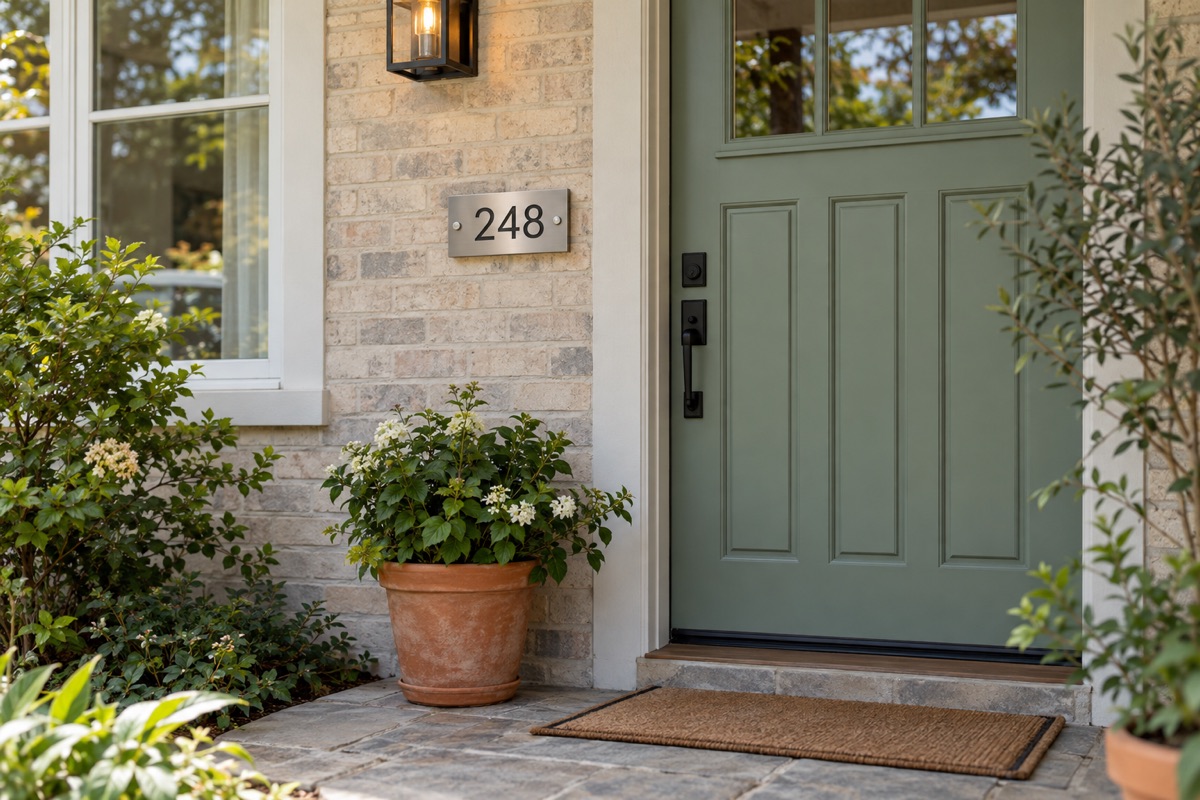
Share an entrance photo or ask for decorating ideas without displaying the door number. The door, plants and brickwork stay untouched.
Blur text in your image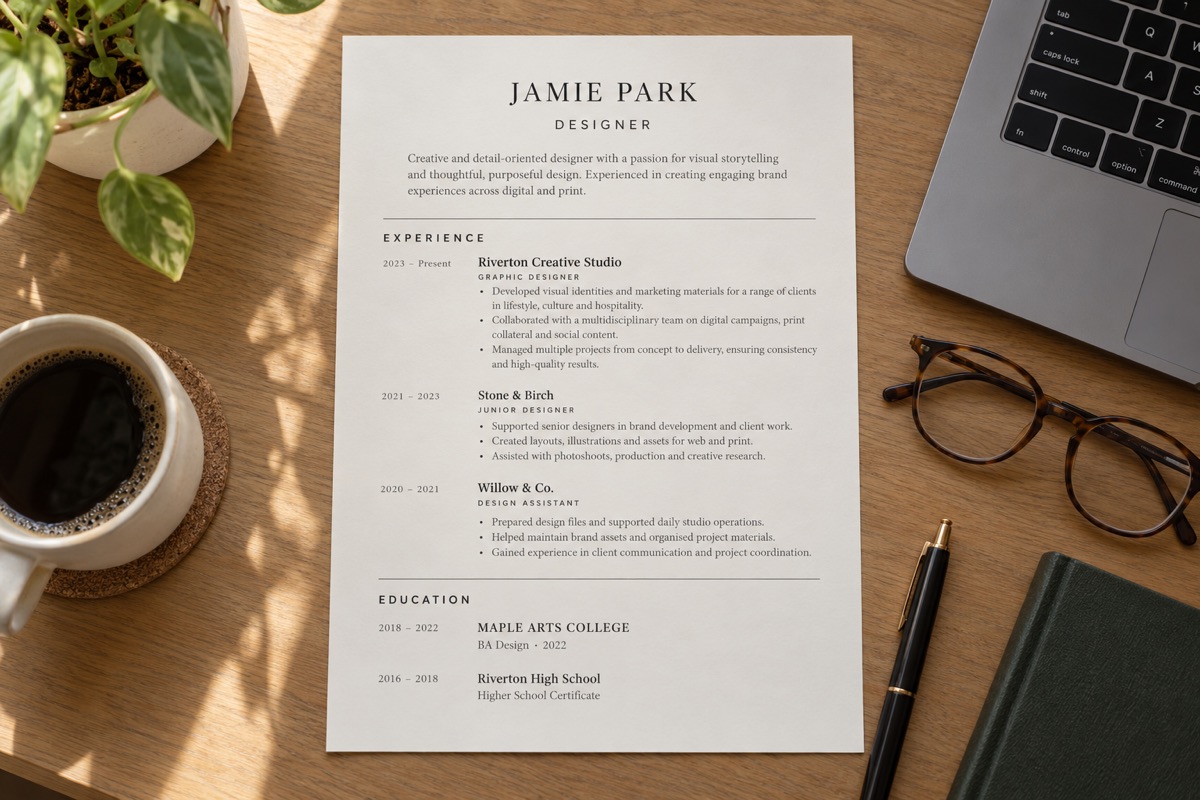
Ask for feedback on the layout and experience section. Blur school names you would rather keep private, and review any other identifying details.
Blur text in your image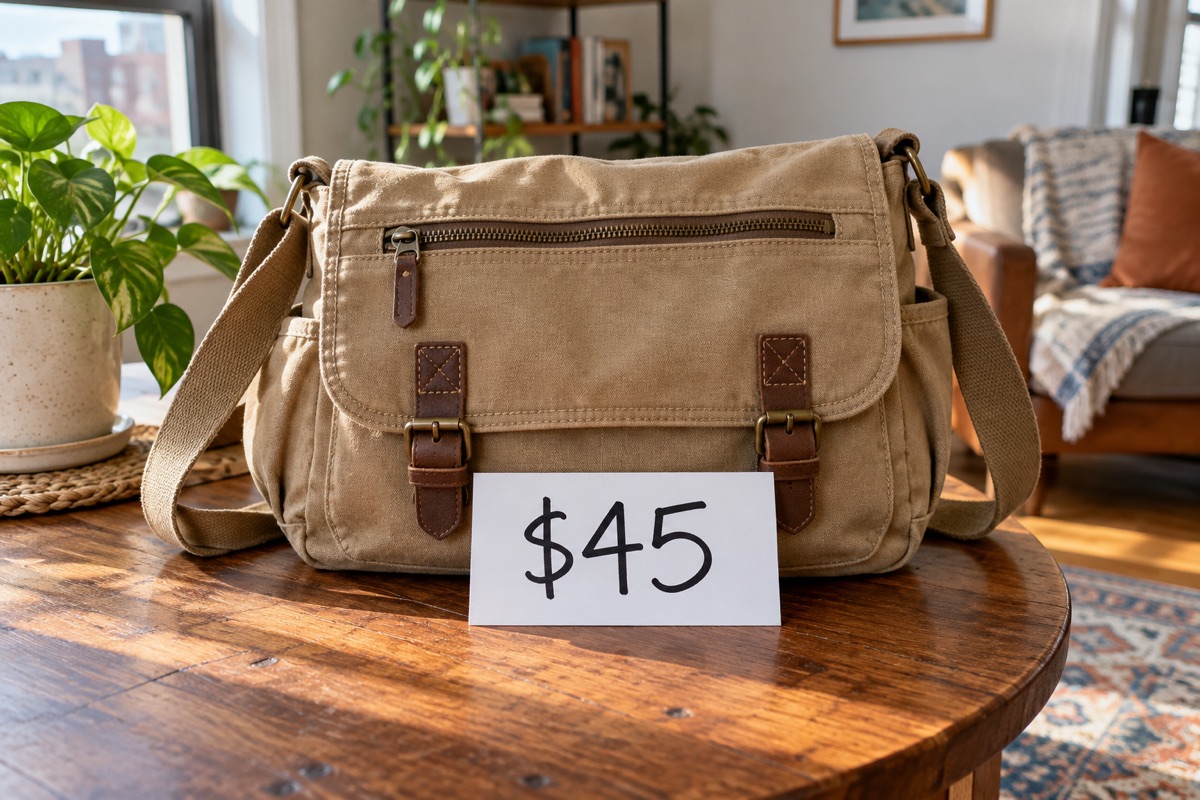
Reuse a secondhand listing photo without showing the price on the card. Blur just the amount while keeping the bag and its condition visible.
Blur text in your imageBlur text in an image online from your desktop or phone browser. Your image is processed on your device, so there is no app to install and no upload queue to wait for. Open the editor, brush over the text and save the result.
This page is for hiding text you still want to keep in the picture — blurred and hard to read, but the layout untouched. If the words should be gone entirely with nothing left in their place, use Remove Text From Image. If you want to swap the wording for something new, use Edit Text in Photo. To rewrite a whole block of copy across the design, go back to Change Text in Image.
Upload your image, brush over the words you want hidden, then click Blur and download the result. All three steps run in your browser.
Blurring mixes the letters with surrounding pixels to make the text hard to read. The result depends on text size and blur strength. Check the downloaded image before sharing; blur is not a guarantee that sensitive information cannot be recovered.
Yes. Brush over only the area you want blurred. The blur is applied inside that selection, and pixels outside it stay unchanged.
Blurring keeps the text area in place but makes the letters hard to read. Removing erases the words and fills the area with a reconstructed background. Use Remove Text From Image when the words should disappear.
Yes. Open this page in your phone browser, choose an image and use your finger to brush over the text. There is no app to install.
Yes. This browser-based blur tool is free, with no account or credits required. For AI text editing and removal, see our pricing.