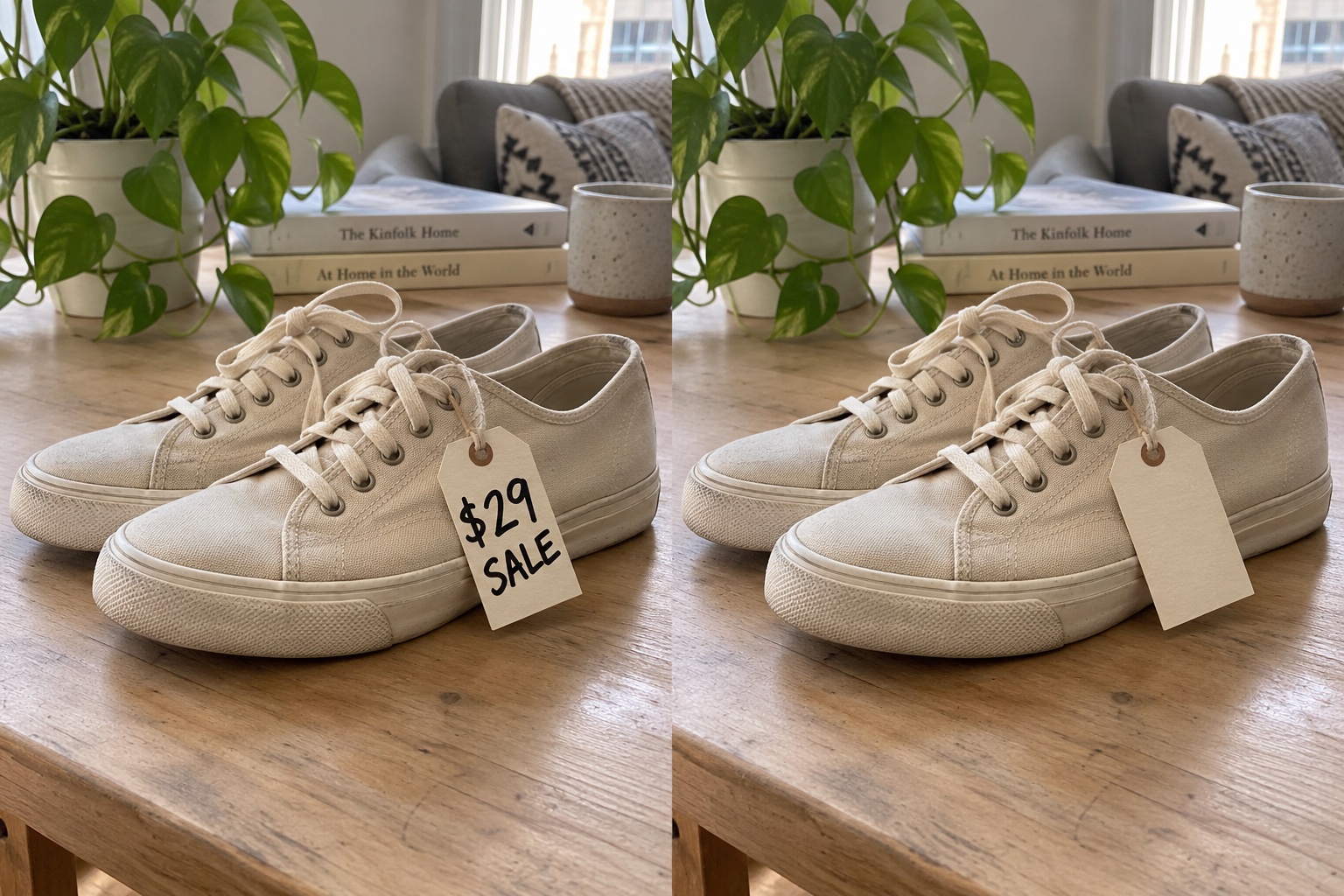
Refresh a product photoIllustrative example
01
Refresh a product photo
Remove an old promotion from a product photo before reusing it in your next listing.
Try it on your image ChangeTextImage
Need to remove text from an image? Drop your file in the editor below, brush over the words you want gone, and the AI erases them and rebuilds what was behind them — so the picture still looks untouched. It doubles as a text remover from image for screenshots, product photos and memes.
Your original image and edited result will appear here.
Drag a JPG, PNG or WebP file into the editor, or click to browse. Nothing to install, it runs in your browser.
Paint over the words you want removed. Cover the whole word, not half of it — one pass is usually enough.
The AI fills the area back in with whatever the text was sitting on, and you download the cleaned image.
Keep the image. Clear the words you no longer need.
Remove an old promotion from a product photo before reusing it in your next listing.
Try it on your image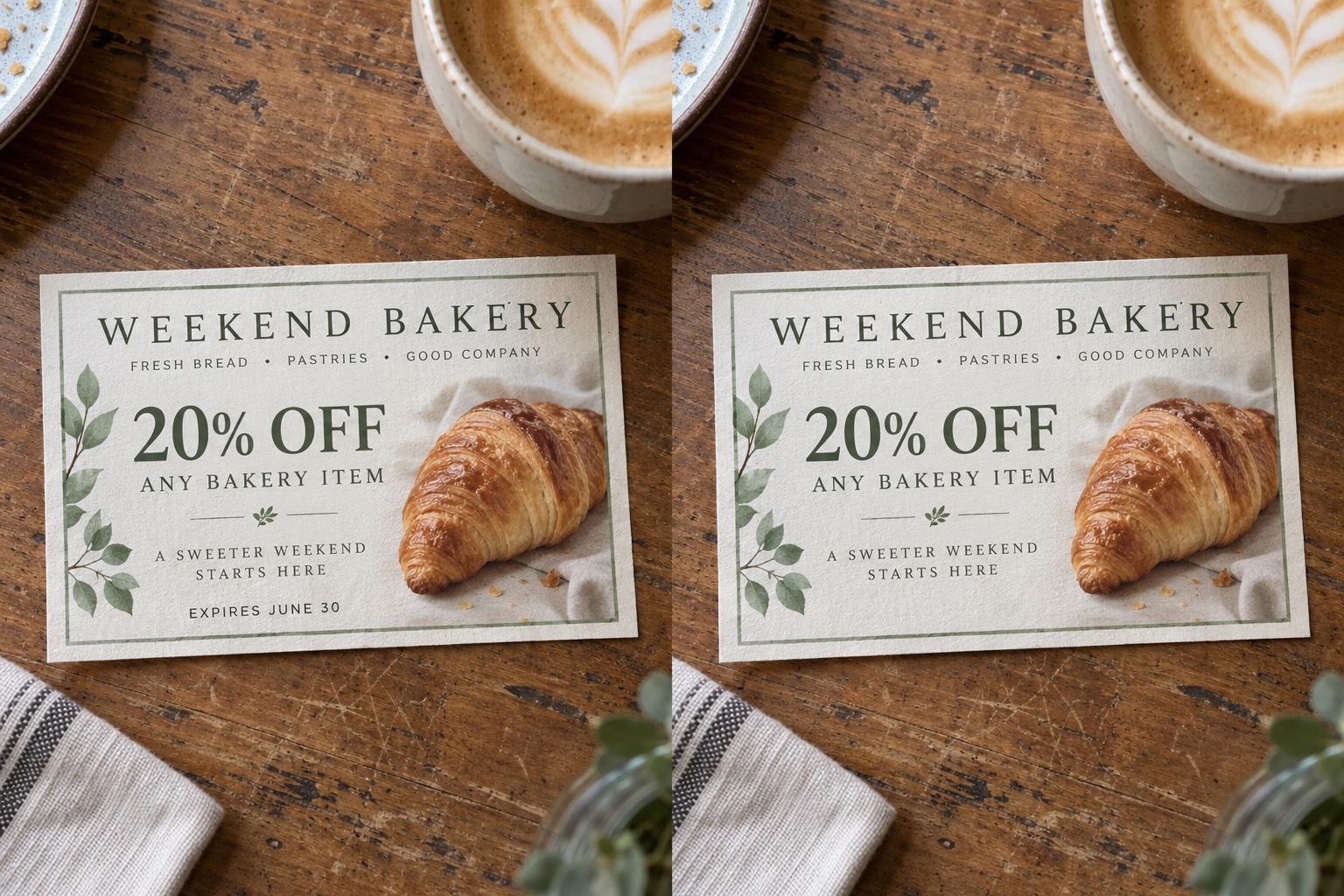
Clear an expired offer date while keeping the artwork and headline ready for your next campaign.
Try it on your image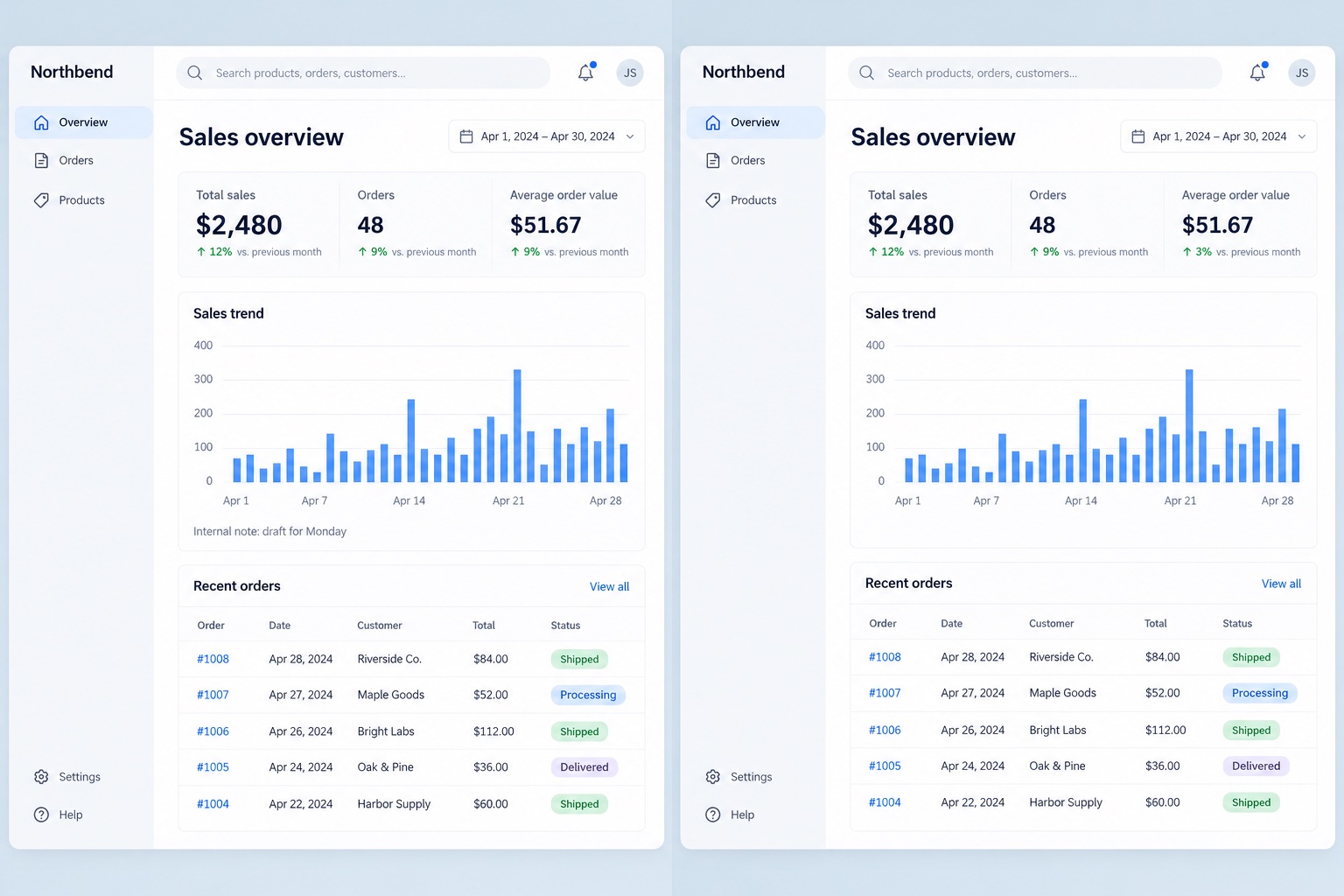
Remove a draft annotation from a dashboard screenshot for a cleaner presentation.
Try it on your image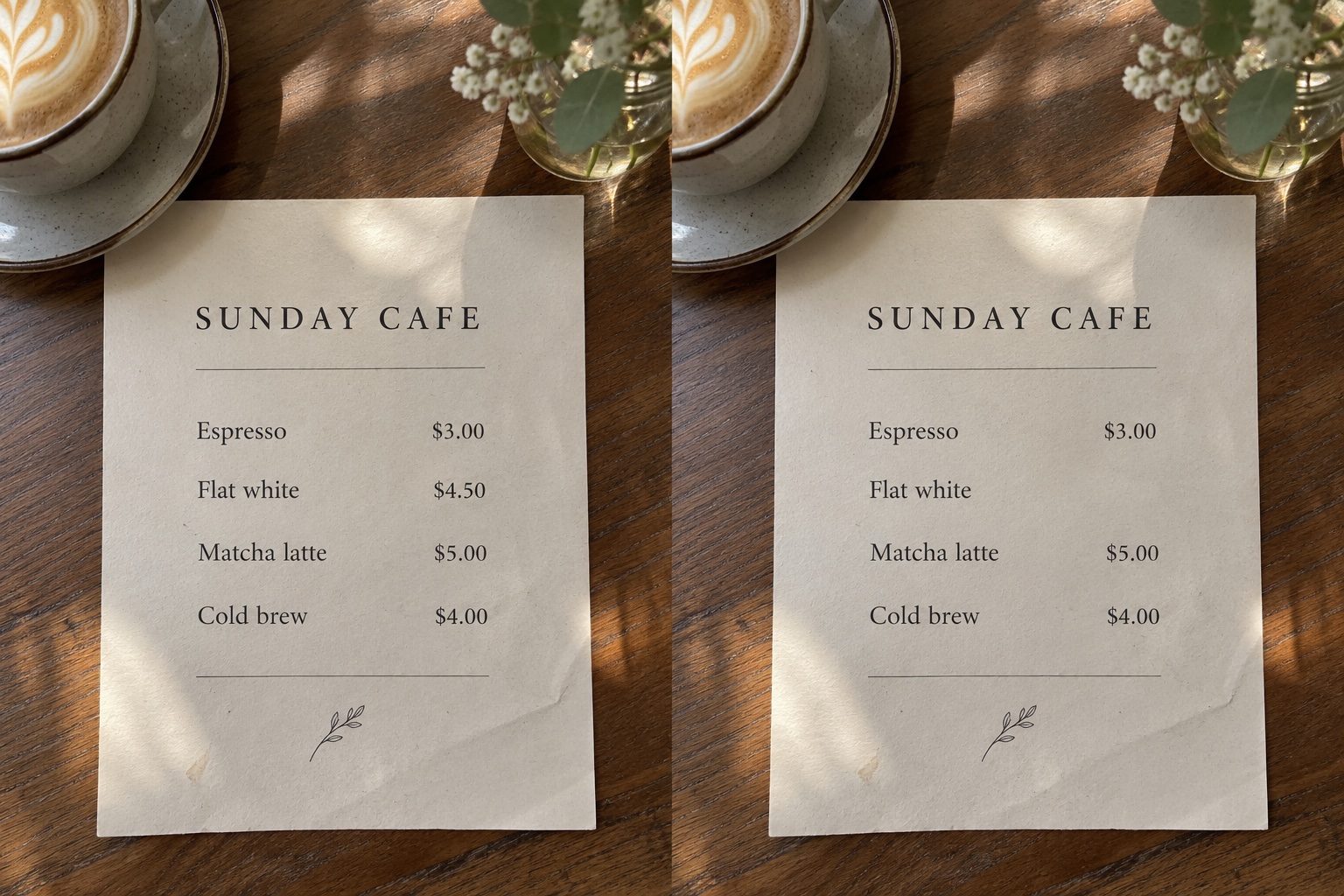
Erase one price while keeping the item names and the surrounding menu layout in place.
Try it on your image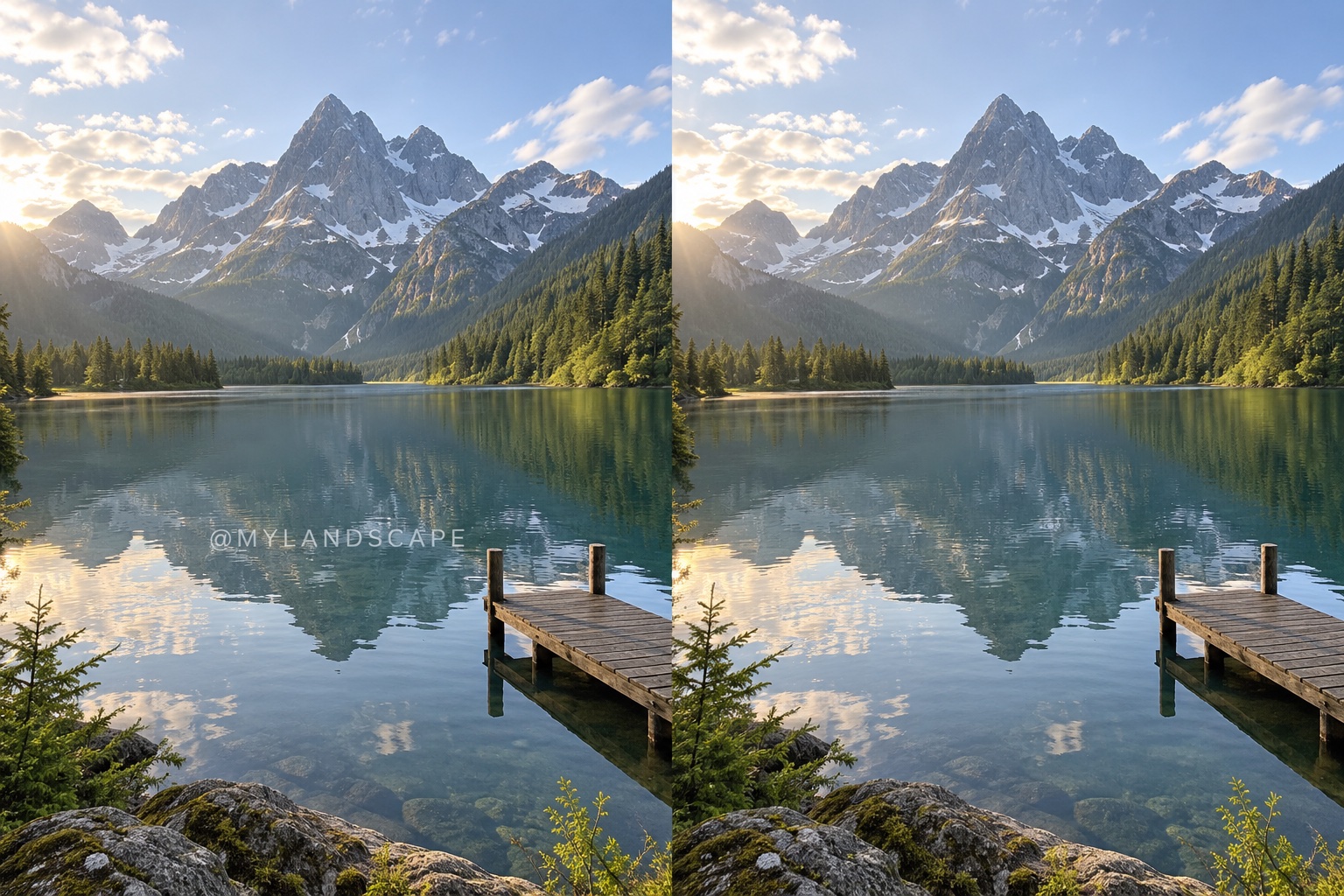
Take an old handle off a landscape graphic you own before adding it to a new collection.
Try it on your imageBlurring, smudging or dropping a solid block over text all leave a mark: a soft rectangle, a colour that doesn't match, a smeared edge. That passes when nobody looks closely — it doesn't when the image has to look untouched.
Instead of hiding the text, the editor rebuilds the pixels underneath: textures, gradients, shadows, and the edges of whatever the words sat on. That's how a price comes off a menu without the layout shifting, and a caption comes off a photo with no grey smudge left behind.
Printed text on a plain background is the cleanest case; handwriting and busy textures may need a slightly wider brush.
Editable text is rarely the problem on an image — the layout around it is. A restaurant updates a menu and can't have the price column shift; a seller re-lists one product and can't have the whole grid re-rendered.
Because the tool rebuilds only the area you brush, everything else on the canvas stays exactly where it was: no gap, no stretched line, no reflowed column. Run the same edit across a batch of images and they all look like they always read that way.
If you want to keep the original layout and soften the words instead of erasing them, blur text in image with the free brush tool.
Two different jobs, and this site does both.
No. It runs in your browser on desktop and mobile: upload, brush, download.
No. Blur and mosaics hide text; this rebuilds the background, so textures, gradients and edges under the words are filled back in. Very busy backgrounds can still show a small seam — zoom in and brush wider if you see one.
Yes, in a mobile browser, no app. Pinch to zoom before brushing small text.
Printed text is the cleanest case. Handwriting works but the result varies with stroke size and how clean the writing is.
Images and editing instructions are sent to our AI provider to process your edit. You can download the result. We do not promise permanent cloud storage or a fixed automatic deletion deadline; provider retention terms also apply. See our Privacy Policy for details. Privacy Policy
Yes. New accounts receive 10 credits, enough for one free generation. Each generation costs 10 credits. Previewing and downloading a generated result do not cost extra credits.